Gmail + LeadCenter
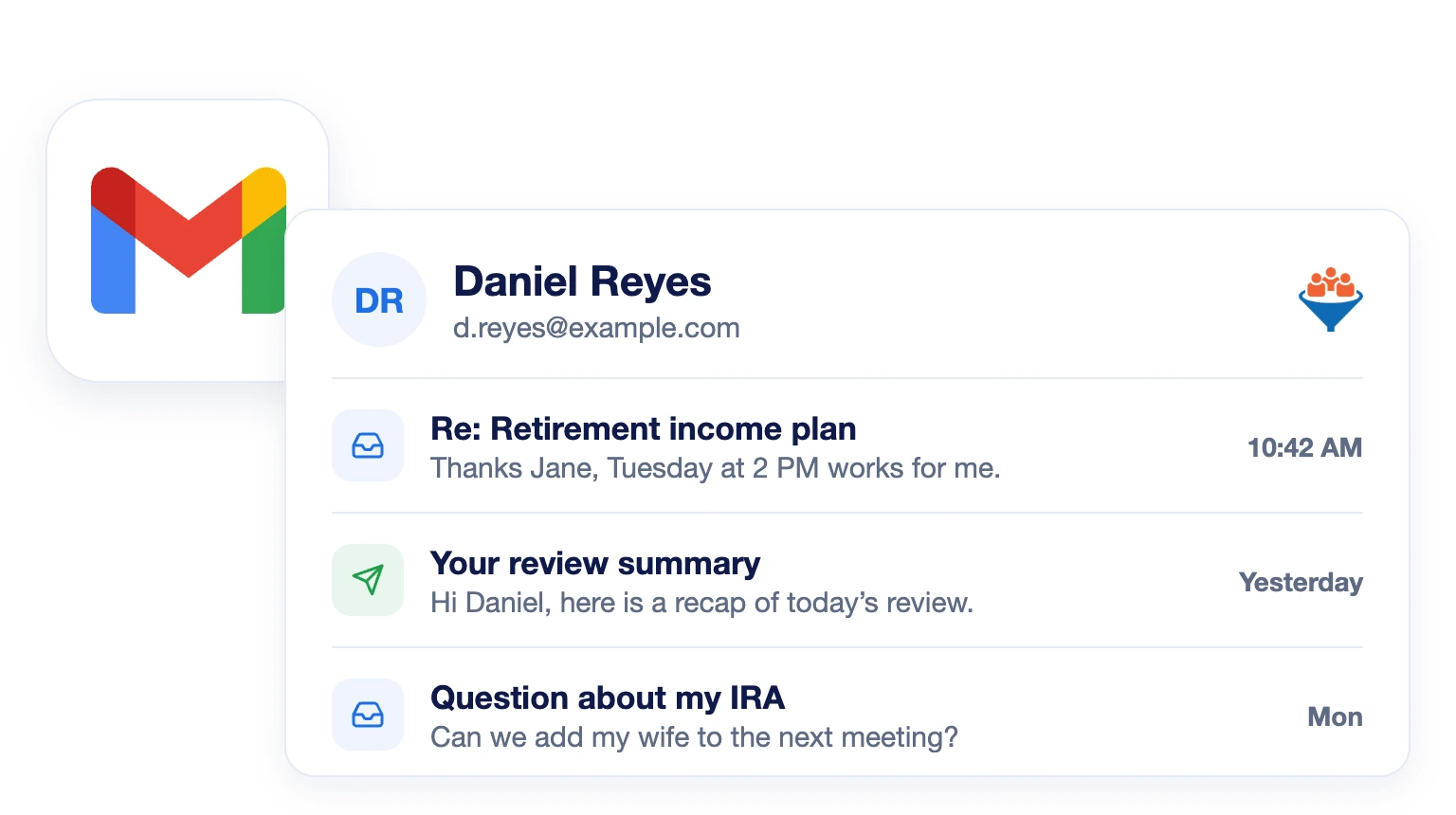
Connect your Gmail or Google Workspace mailbox in about two minutes. Emails with your contacts land on their records, and you can send and reply without leaving LeadCenter.
 Two-Minute Setup
 Emails on the Contact Record
 Send From LeadCenter
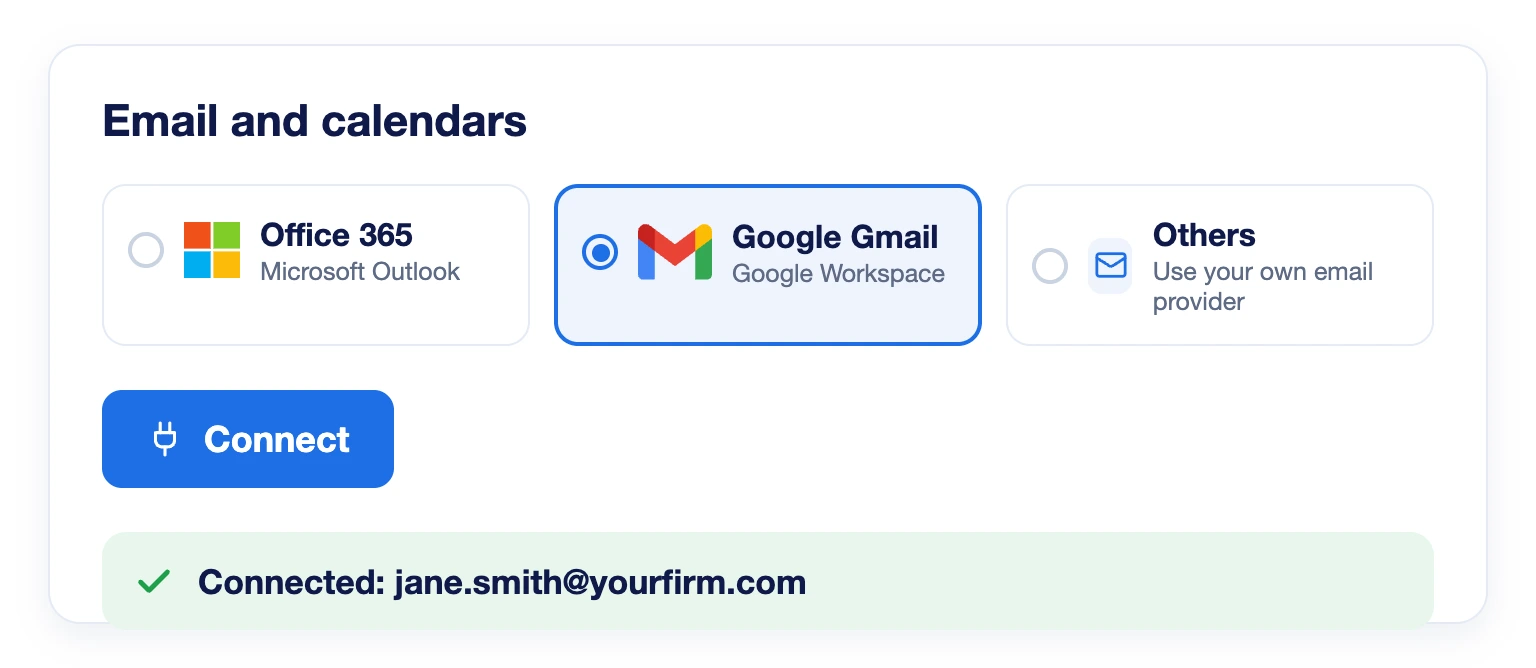
Connect Gmail in About Two Minutes
Open Personal profile, go to Email and calendars, choose Google Gmail and click Connect. Sign in with Google and approve. No app password, no 2-Step Verification setup and no server settings.
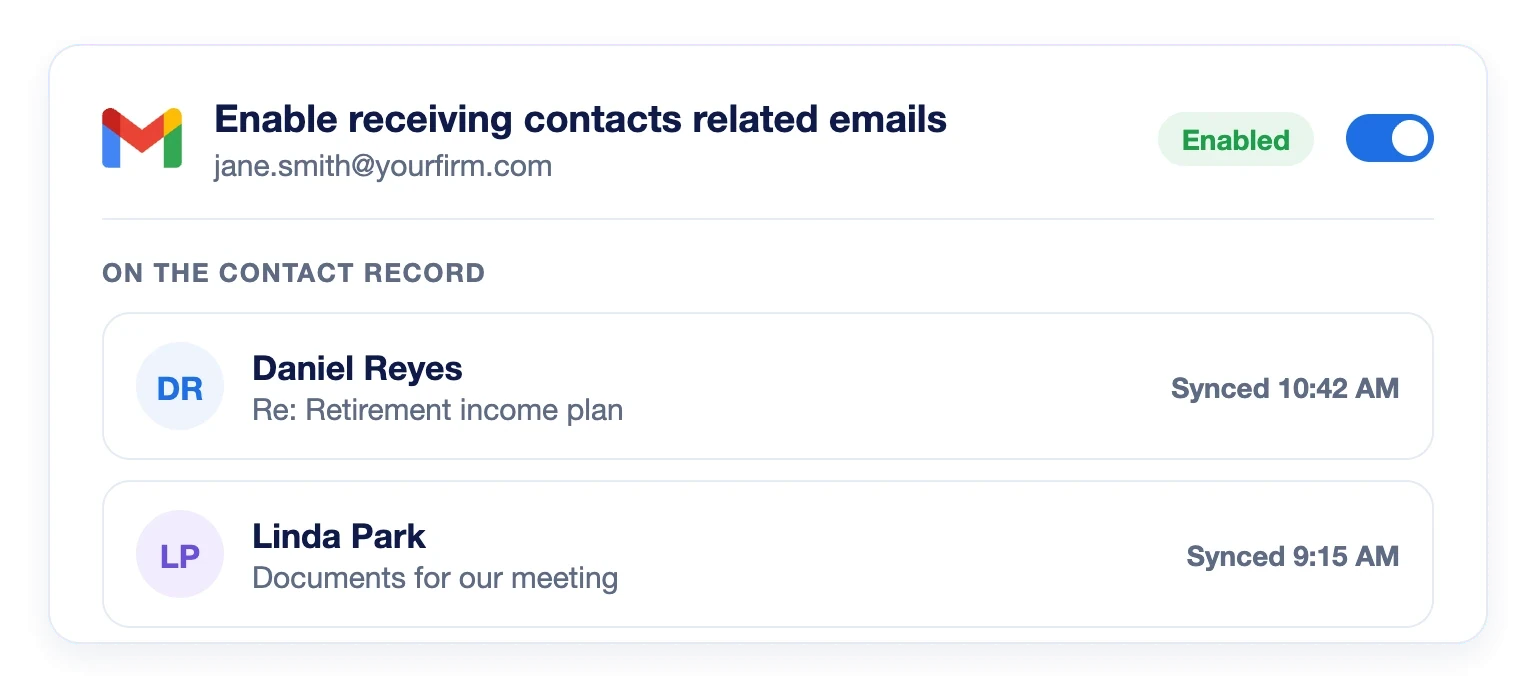
Every Client Email on the Contact Record
Turn on Enable receiving contacts related emails. From then on, emails you exchange with a contact appear on their record automatically, matched by email address. Your whole client history stays in one place.
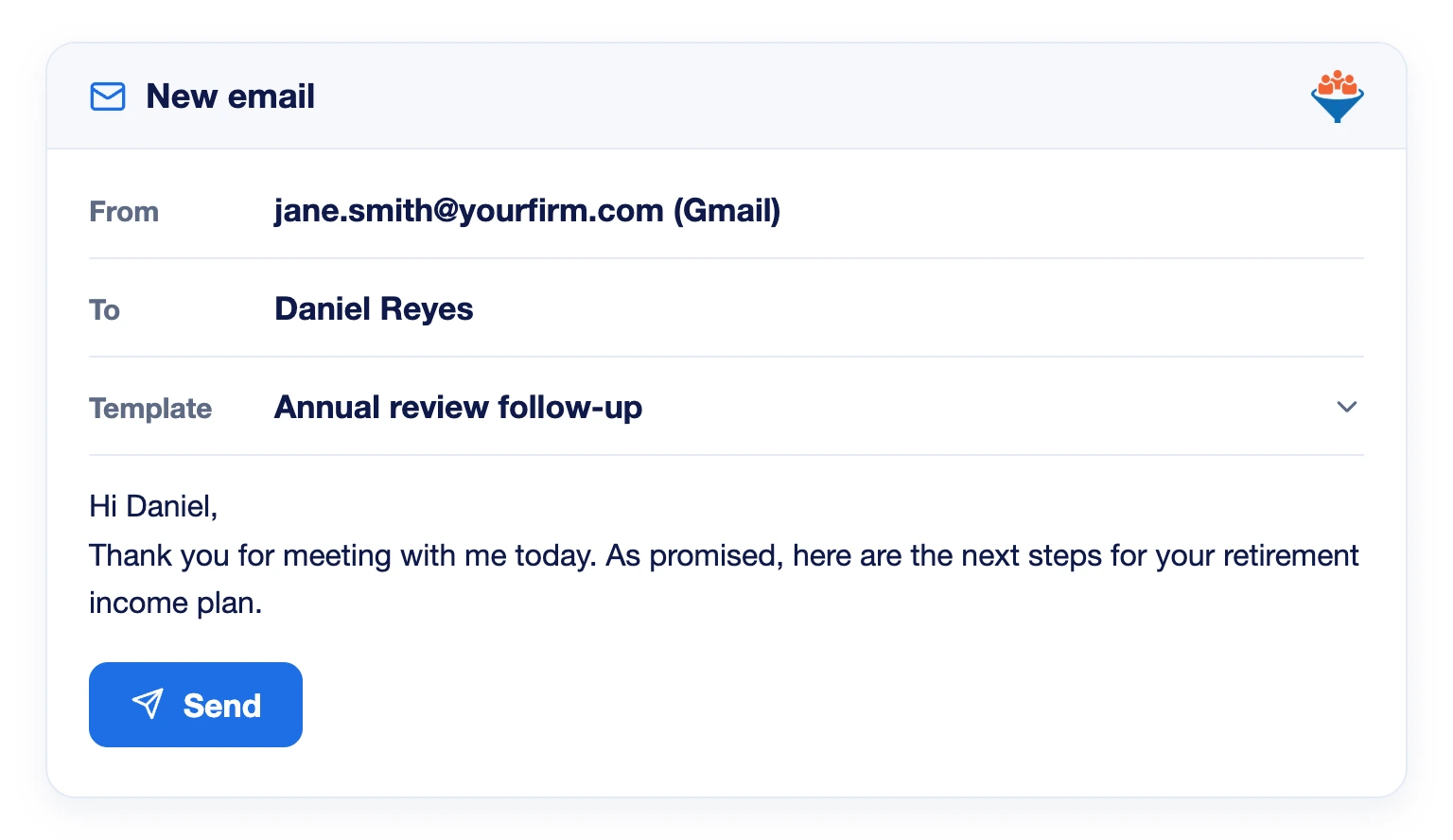
Send and Reply Without Switching Apps
Write to contacts and reply to them from inside LeadCenter, using your saved email templates. No copying between Gmail and your CRM.
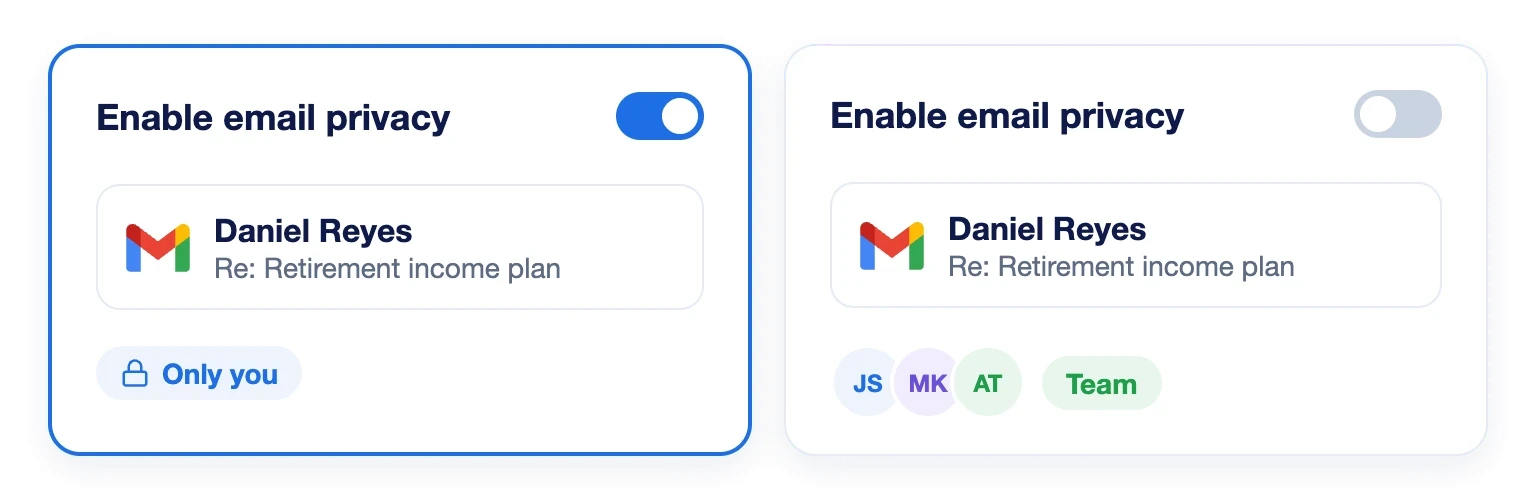
You Decide Who Sees Your Emails
Turn on Enable email privacy and only you can read your synced emails. Leave it off and your team shares visibility of client correspondence on the contact record.
Frequently asked questions
Does it import my old emails?
No. Sync covers emails with your contacts from the day you connect. Your mailbox history is not imported.
Which emails sync to LeadCenter?
Only emails exchanged with addresses that belong to a contact in LeadCenter, once Enable receiving contacts related emails is turned on.
Can I use my mailbox for email marketing or workflows?
No. Appointment confirmations, reminders, workflows and email marketing send from a shared email account in LeadCenter.
What if emails stop syncing?
Your sign-in has likely expired or been revoked. Gmail does not send a notice, so check Email and calendars and reconnect.
What happens if I disconnect?
Emails already logged stay on the contact records. You can reconnect any time from Email and calendars.
Bring Your Gmail Inbox Into LeadCenter
Keep every client conversation on the contact record, and reply without switching apps.
LeadCenter CRM, anywhere you go
Access your contacts, calendar, and tasks on the go with the LeadCenter mobile app for iOS and Android.